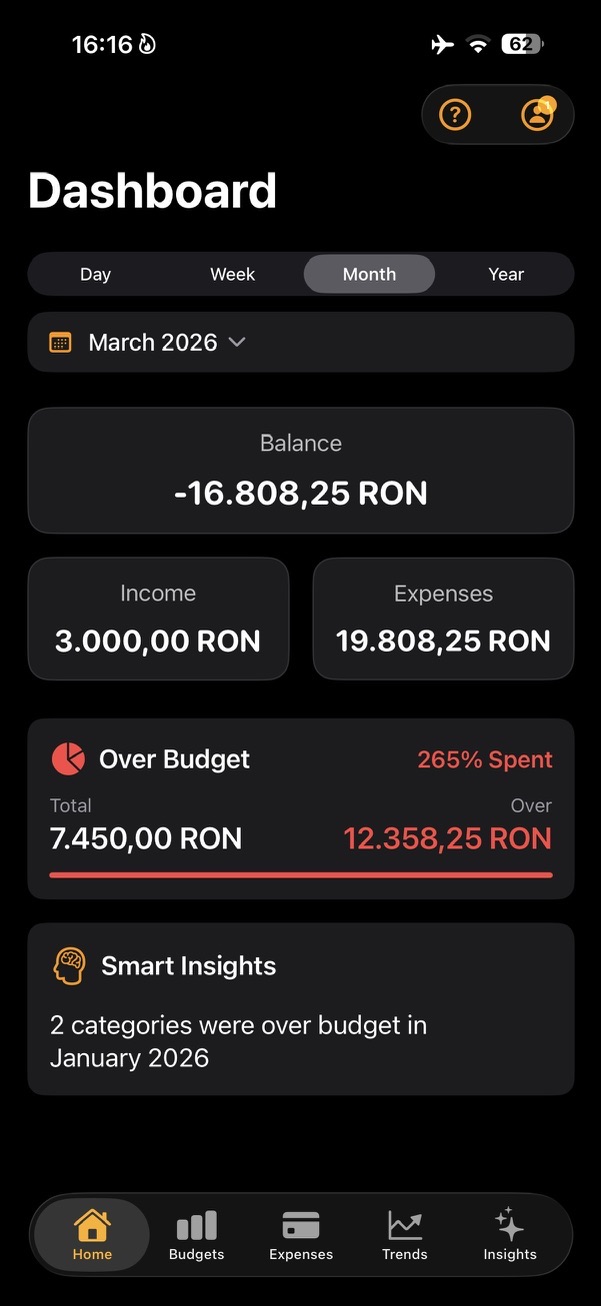
Tap the Budget card on the Home screen
On the Home screen, tap the Budget card to open Monthly Review. The card gives you the quick signal first: total allocated budget, how much is over budget, and the spent percentage for the selected period.
Monthly Review is where that signal becomes easier to understand. Instead of stopping at a red number, it shows the income, expenses, budget pressure, and categories behind the month.
- The Home Budget card is the entry point.
- Monthly Review explains what sits behind the budget pressure.
- Use it when the month needs more context than one card can show.
Read the monthly totals first
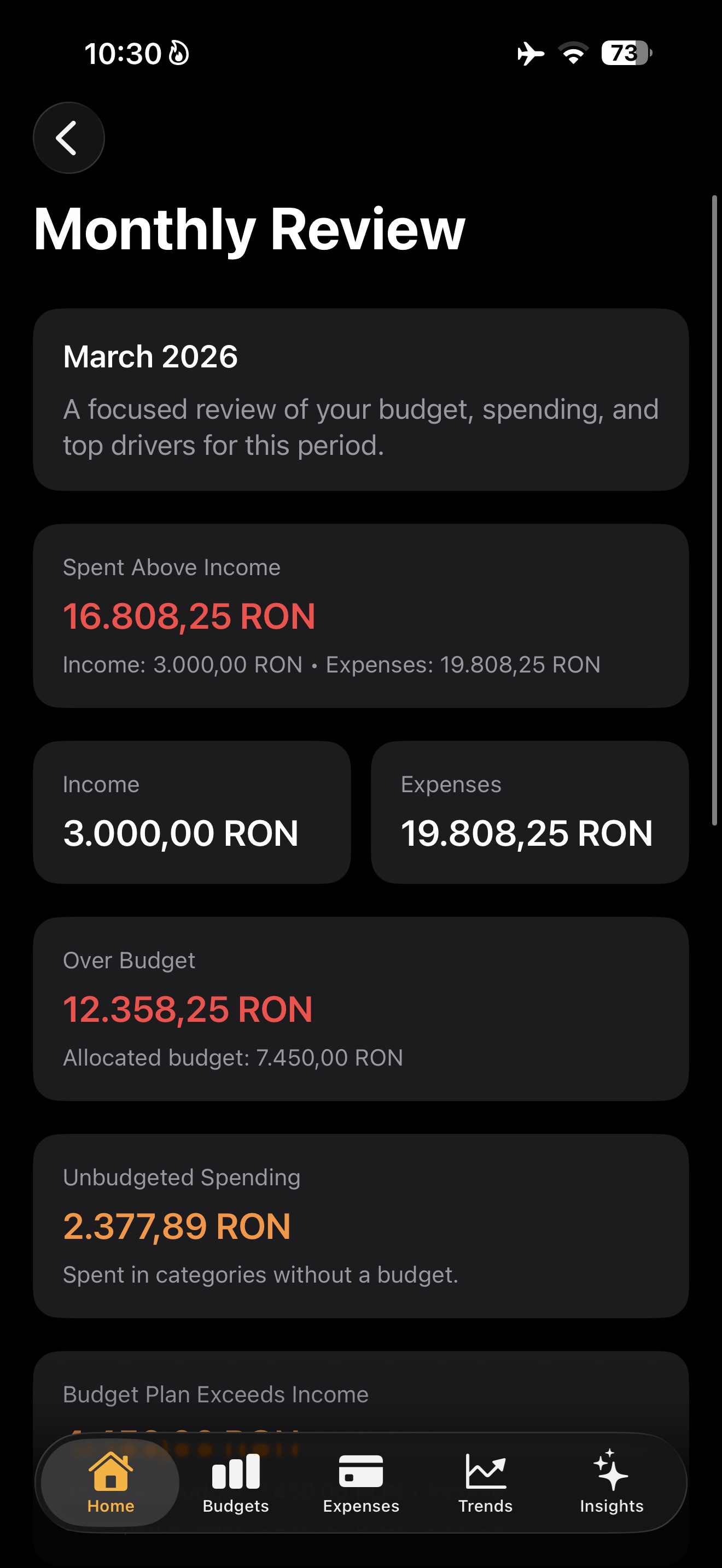
The first Monthly Review cards show the basics: income, expenses, whether spending is above income, how far the month is over budget, and how much was spent in categories without a budget.
This helps separate two different questions: whether the month spent more than income, and whether your category budgets were realistic for the spending that actually happened.
- Income and expenses give the month its scale.
- Over Budget compares real spending with allocated category budgets.
- Unbudgeted Spending shows money that did not belong to a budgeted category yet.
Use the comparison to see what changed
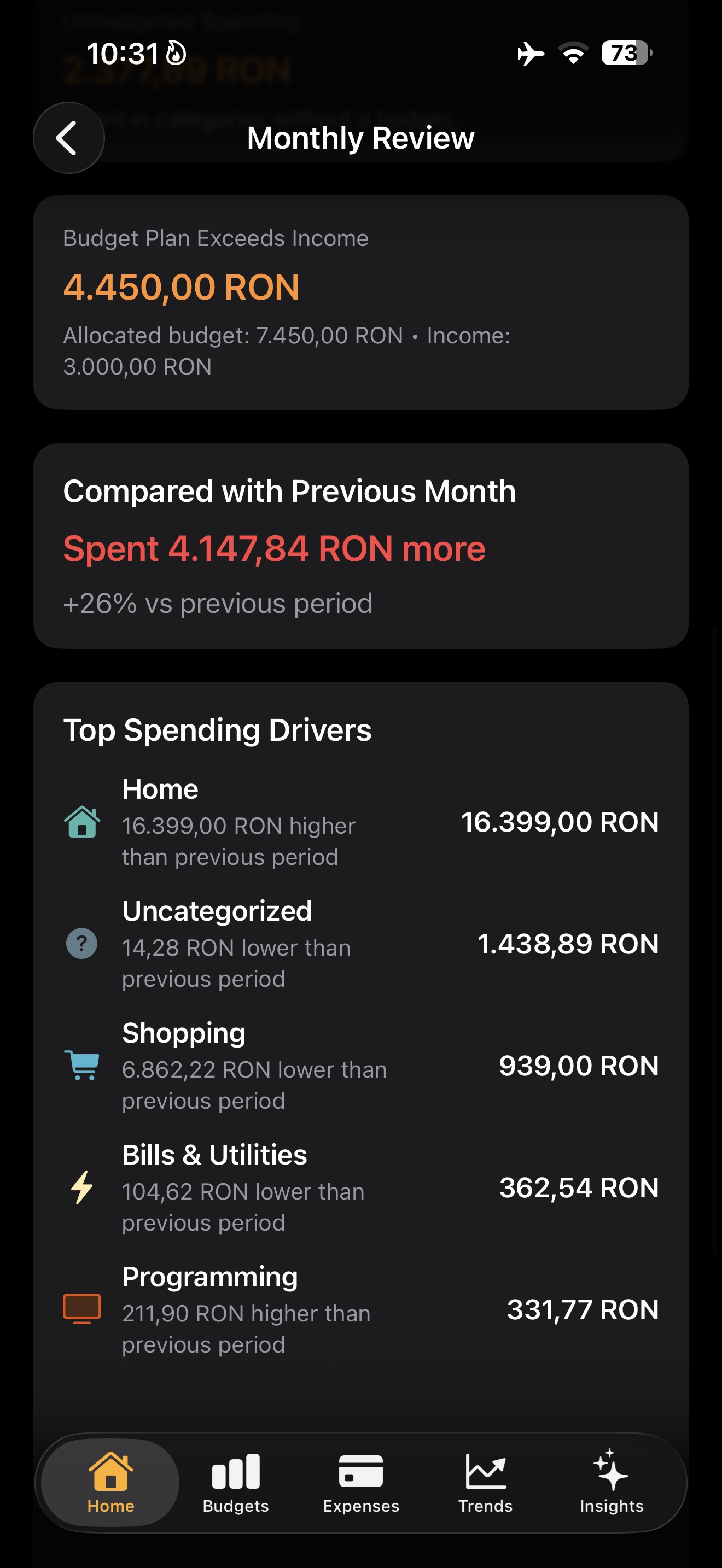
Monthly Review also compares the current period with the previous month. This is useful because the total alone rarely explains why the month feels different.
Top Spending Drivers show the categories that moved the month most. A category can be higher or lower than the previous period, so you can see what actually changed before deciding what to adjust.
- Previous month comparison shows direction.
- Top Spending Drivers explain which categories changed most.
- Budget plan warnings show when planned category budgets are larger than income.
Related reading
Spending Overview vs Category Breakdown.How category budgets build your monthly budget.